

Hello! Today I’d like to share with you a new series of articles on the LuzTech Blog, which will be called Stargazed.
And what is this series about? Excellent question! The idea is to share interesting, creative, and/or useful repositories that I’ve found in my wanderings around GitHub, and that might be useful to you too.
The name is a nod to giving a Star to a repository on GitHub, and also to the idea of looking up at the starry sky (Stargazing) and getting inspired by what we find up there.
The goal of the series isn’t to showcase ultra-mega productive repositories, but rather to bring something interesting and that, if possible, gives you a little extra nugget of knowledge.
Anyway, introductions aside, let’s get down to business!
Table of Contents
Table of Contents
Containers
Let’s start with containers. This technology revolutionized the way we develop and deploy applications, and today it’s a fundamental requirement for a modern developer.
Containers allow you to package a solution and everything it needs into an immutable, portable, and (if done right) lightweight image.
What do you mean?
Well, suppose you have a Node.js API that receives a video through an endpoint and needs to convert it to a compact format for later AI analysis (after all, nobody deserves to spend a ton of tokens on a 5-second, 10GB AVI video).
And, to call ffmpeg to do the conversion, you use the famous exec from Node.js:
import { exec } from 'child_process';

// Assume inputPath and outputPath are properly sanitized and validated
export default async function convertToSmallVideoFormat(inputPath, outputPath) {
  const process = exec(
    `ffmpeg -i "${inputPath}" -c:v libx264 -preset fast -crf 28 "${outputPath}"`
  );

  await new Promise((resolve, reject) => {
    process.on("exit", code => {
      if (!code) {
        resolve();
      } else {
        reject(new Error(`ffmpeg exited with code ${code}`));
      }
    });
  })
}
On your machine, it’s going to work just fine, since FFMpeg will be installed and available in the PATH. But… what if you need to run it on a different platform, like Azure Functions, a Web App, or a Windows VM?
Then you’d need to install FFMpeg on the machine, which isn’t possible in many serverless platforms like Azure Functions.
So, what’s the solution? Containers! You can create an image with Node.js and FFMpeg installed, and run your API anywhere that accepts containers, which is the case for most modern platforms, including the ones I mentioned above.
A container for this solution would look something like this:
FROM node:24.15.0

WORKDIR /app

RUN apt-get update && apt-get install -y ffmpeg

COPY package.json package-lock.json ./
RUN npm ci

COPY . .

CMD ["npm", "start"]
After that, just run a docker build . and the image will be ready to run practically anywhere.
The code above was simplified for educational purposes. For production use, always look for the best practices of the language and/or framework you are using.
The repository
With this brief summary of containers out of the way, we get to the main point of the article: container2wasm. When I discovered it, I was blown away, because, theoretically, it allows running anything directly from the browser, without installing a single thing.
But of course, it’s not all sunshine and rainbows. Even with a very powerful computer, the container will run with terrible performance, so you can’t say the user experience will be the best in the world (if there’s even a way for the user to have an experience to begin with).
Also, unless there’s a network proxy server, the container’s HTTP calls will use the browser’s fetch function, which brings the infamous CORS into play, blocking any cross-domain request without the proper Access-Control-Allow-Origin header.
But enough stalling. How do we make a container run in the browser? First, we need to install the tool from their releases.
For Windows users, you need to use WSL or another form of Linux virtualization, since container2wasm doesn’t have native Windows support. And for MacOS users, there’s a Homebrew formula that makes installation a whole lot easier.
Once installed and configured in your PATH, the c2w and c2w-net commands should be available in your terminal.
Now, grab a locally saved image—it can be an image created with docker build or downloaded with docker pull—and run the following command:
c2w --to-js "<image>:<tag>" "<output folder>/"When running the version installed via Homebrew, I got a git clone error when building the WASM image. To solve it, I added this flag: --build-arg "SOURCE_REPO=https://github.com/container2wasm/container2wasm". I didn’t have the same issue when cloning the repo and building it manually in Go.
With that, a WASM image will be generated, and you’ll be able to add the container to a website. But… how do we do that?
Running the WASM container in the browser
With the files in hand, we need to create an HTML file that will load the WASM container. The project’s examples folder contains a solid reference. For images using the --to-js flag, the emscripten and emscripten-simple examples are the best starting point.
And which one to choose?
The difference between them is network management.
emscripten allows the container to communicate with the internet via the browser’s fetch API, or using a WebSocket as a network proxy (with c2w-net, for example).
On the other hand, emscripten-simple has no network support and is simpler to set up.
Each example has a README.md showing how to create a compatible image and how to configure the network, if necessary.
All instructions below were taken from the repository and might become outdated. If you’re going to follow these steps, double-check to ensure there haven’t been any updates in the repo before proceeding.
Hands on: Neovim with the LuzTech typography repository
Let’s test the simplest one (emscripten-simple). This is the Dockerfile I created to open Neovim directly at the root of the LuzTech typography repository:
If you look at the repository link, you’ll see that I used the v2026.08.03-02.22 tag. This is because, at the time I was working on this article, the repository wasn’t a website yet.
FROM alpine:latest AS builder

RUN apk add --no-cache git

WORKDIR /workspace

RUN git clone "https://github.com/LuzTech-Development/Typography" .

RUN rm -rf .git

FROM alpine:latest AS runtime

RUN apk add --no-cache neovim

COPY --from=builder /workspace /workspace

WORKDIR /workspace

ENTRYPOINT ["nvim", "."]
I built the image with the command:
docker build --platform linux/amd64 -t nvim-demo:latest .I added the --platform linux/amd64 flag to force building the image for the x86_64 architecture, since the container2wasm README recommends this architecture to reduce emulation layers.
After that, I ran the command I described in the section above to generate the WebAssembly files.
Then I copied the index.html from the example and added the Fit Addon for XTerm.js so the terminal would render in full screen.
View modified index.html
<html>
  <head>
    <title>container2wasm: Neovim + LuzTech Typography</title>
    <link rel="stylesheet" href="./vendor/xterm.css" />
    <link rel="icon" type="image/svg+xml" href="/favicon.svg" />
    <style>
      html,
      body {
        width: 100%;
        height: 100%;
        margin: 0;
        overflow: hidden;
        background: #000;
      }

      #terminal {
        width: 100%;
        height: 100dvh;
      }
    </style>
  </head>
  <body>
    <div id="terminal"></div>
    <script src="./load.js"></script>
    <script type="module">
      import './vendor/xterm.js';
      import './vendor/xterm-pty.js';
      import { FitAddon } from './vendor/addon-fit.mjs';
      import './arg-module.js';
      import initEmscriptenModule from './out.js';

      const xterm = new Terminal();
      const fitAddon = new FitAddon();
      xterm.loadAddon(fitAddon);
      xterm.open(document.getElementById('terminal'));
      fitAddon.fit();

      const { master, slave } = openpty();

      xterm.loadAddon(master);

      Module.pty = slave;
      Module['mainScriptUrlOrBlob'] = new URL('./out.js', import.meta.url).href;

      // "/pack/info" file needs to be provided to the filesystem to start
      // the container. Refer to /cmd/init/main.go for the detail of info file.
      let info = 't:' + Math.round(new Date() / 1000) + '\n';
      Module['preRun'].push(mod => {
        try {
          FS.mkdir('/pack');
        } catch (e) {}
        mod.FS.writeFile('/pack/info', info);
      });
      var readableCallbacks = [];
      Module.pty.onReadable(() => {
        readableCallbacks.forEach(cb => cb());
        readableCallbacks = [];
      });
      Module['preRun'].push(Module => {
        Module['TTY'].stream_ops.poll = (stream, timeout, notifyCallback) => {
          if (Module.pty.readable) {
            return 1;
          }
          if (notifyCallback != null) {
            notifyCallback.registerCleanupFunc(() => {
              const i = readableCallbacks.indexOf(notifyCallback);
              if (i != -1) readableCallbacks.splice(i, 1);
            });
            readableCallbacks.push(notifyCallback);
          }
          return 0;
        };
      });

      const fitTerminal = () => fitAddon.fit();
      addEventListener('resize', fitTerminal);
      new ResizeObserver(fitTerminal).observe(
        document.getElementById('terminal')
      );

      (async () => {
        await initEmscriptenModule(Module);
        fitTerminal();
      })();
    </script>
  </body>
</html>The dependencies are loaded via CDN in the original index.html, but the Cross-Origin-Embedder-Policy and Cross-Origin-Opener-Policy headers (which are mandatory for container2wasm to work) can cause inconsistencies when downloading them. To avoid this, I downloaded everything to a vendor/ folder next to the index.html.
View script to download dependencies locally
#! /bin/bash

mkdir -p vendor
curl -fsSL "https://unpkg.com/@xterm/xterm@5.5.0/css/xterm.css" -o vendor/xterm.css
curl -fsSL "https://unpkg.com/xterm@5.3.0/lib/xterm.js" -o vendor/xterm.js
curl -fsSL "https://unpkg.com/xterm-pty/index.js" -o vendor/xterm-pty.js
curl -fsSL "https://esm.sh/@xterm/addon-fit@0.10.0/es2022/addon-fit.mjs" -o vendor/addon-fit.mjs
Finally, to see how it turned out, I ran Vercel’s serve command with the following serve.json file at the root:
{
    "headers": [{
        "source": "**/*",
        "headers": [
            {
                "key": "Cross-Origin-Embedder-Policy",
                "value": "require-corp"
            }, {
                "key": "Cross-Origin-Opener-Policy",
                "value": "same-origin"
            }
        ]
    }]
}These headers are mandatory for the system to work, but they cause other issues, like, in the case of the blog, preventing Gravatar from working or causing inconsistencies when downloading dependencies from CDNs. Keep this in mind if you plan to use this repository in a project.
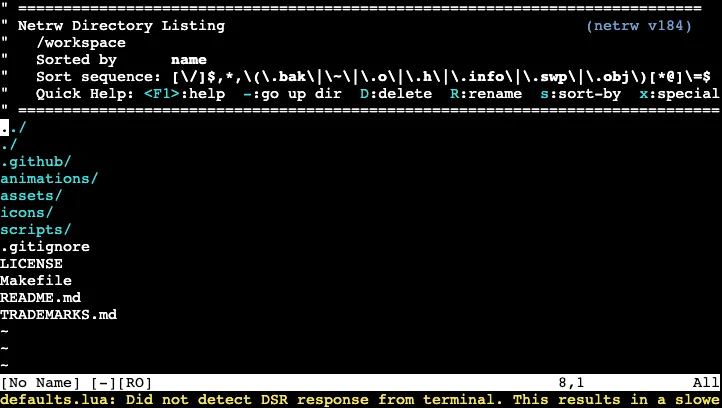
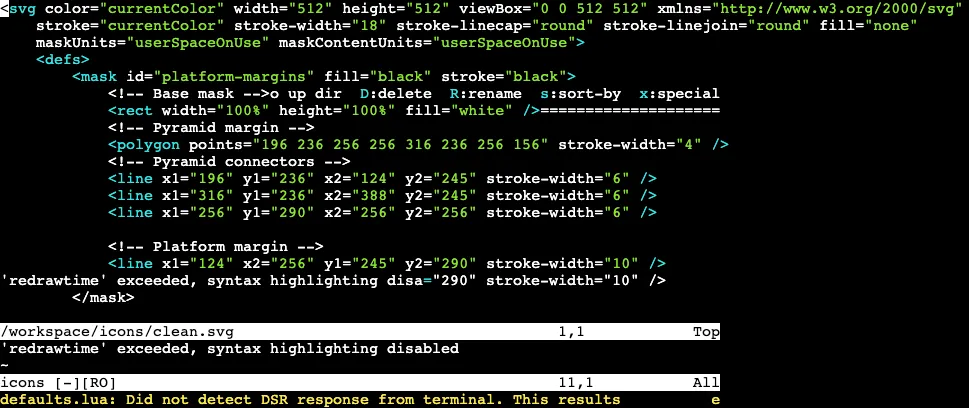
And just like that, it worked! Check out how it looks:
If you want to test it out: Click here
It takes a LONG time for the container to start, it’s not an implementation error. On an M5 Macbook Air, it took about 3m30s for the first Neovim screen to appear.
Conclusion
Okay, but what about the network example? Are we at the conclusion already?
Yep! I set out to thoroughly explore the repository, but the network example consumed way more time and energy than I intended to use. So I decided to focus on the simpler example for this post.
That being said, what can we conclude from this repository?
Well, it’s a pretty interesting idea. Making containers even more portable than they already are. However, to be completely honest, there are still many challenges to overcome before this becomes truly practical on a daily basis.
First, I’d say the user experience isn’t great, since there are multiple variations and relevant flags to configure. In Docker, for instance, it’s just docker build and docker run.
Secondly, although understandable, the compilation time is quite long, even for small images, which makes iterations slow and frustrating.
And finally, I’d say its use doesn’t quite make sense in the current landscape. Containers are already portable, loading times are vital in the browser, and many tools (Vite+, for example) are optimizing for the development experience.
Either way, it’s a cool project to explore and learn about container architecture, and to see just how much the browser can handle.